
The full app: in your browser or on your desktop.
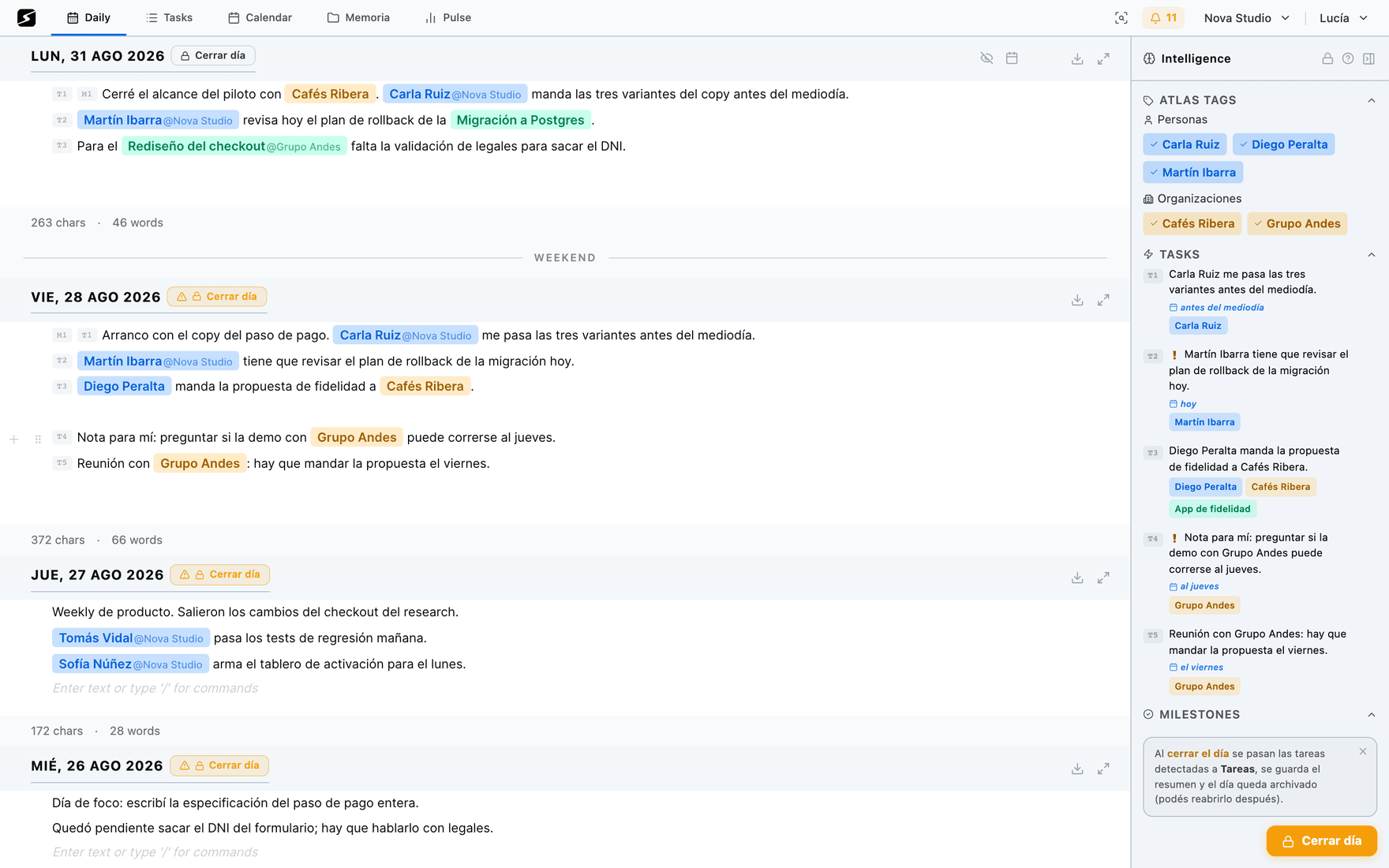
This is the whole workspace, with all nine tabs and everything the platform can do. It runs in any browser with nothing to install, and as a native macOS and Windows app when you want system audio capture, global shortcuts and the recording pill.
The nine tabs
Each tab is a different view of the same material, not a separate module. What you do in one shows up in the others instantly.
Daily
One page per day. Everything comes in through here: you write, AI detects, and closing the day materializes it. See Tasks.
Calendar
Month and week, your events and your tasks on the same grid, with drag to plan. See Calendar.
Planner
The week with a quota, your deliverables and placement by energy. See Calendar.
Recaps
Record, transcribe, summarize and extract action items. See Recaps.
Docs
The document tree, the editor and AI generation. See Memory.
Canvas
Infinite Miro-style canvases, with Apple Pencil on iPad.
Files
Everything you uploaded, with inline preview for PDF, Word and Excel.
Clips
The pages you saved with the Web Clipper, already cleaned up and summarized. See Web Clipper.
Pulse
The state of the period: what you closed, your meetings, your pace, and the digests generated. See The digest.
Global search
A single box that sweeps documents, daily notes, recaps, tasks and the text extracted from your files. It is hybrid: it finds by exact word and also by meaning, so what you wrote in different words still shows up.
Every result arrives with its origin and its date, and opens in its place in the workspace.
Workspaces
A workspace is an independent working space: its own content, its own Atlas, its own digest. How many you get is set by your plan: one on the free plan, two on Hobby and ten on Pro.
- You switch between them from the rail on the edge, and nothing mixes — except your storage, which is counted together.
- What you share outside the workspace you choose document by document. See Memory and documents.
- Per-workspace preferences: what you use it for, automatic day close, connected calendars and the shape of the digest. See Settings.
- A setup assistant proposes the initial configuration based on how you work.
What the desktop app adds
The web does everything else. These six things need to live outside the browser:
- The Pomodoro in the menu bar — on macOS the countdown is drawn next to the Secondbrain icon, top right, and you can start, pause and reset it from there without opening the app. On Windows the clock runs too, with the controls in the tray icon menu, but without the number on show: the countdown beside the icon is macOS only. See the framework.
- System audio — capturing what plays on your computer (Teams, Meet, Zoom) to record a meeting without anyone having to authorize a bot.
- Screen Comprehension · Pro — the snapshots that understand what is projected during a recording.
- Global shortcuts — start a recording without bringing the window to the front.
- The recording pill — while you record it floats over whatever you are doing, with elapsed time, controls and a notes panel. See Recaps.
- Updates — on macOS the app updates itself; on Windows it tells you a new version shipped and takes you to the download.
It is available for macOS and Windows, and downloads from the home page.
The Pomodoro durations — focus and break — are set in Settings → Profile and live in your account, not on the computer: what you set here is what runs on the phone too.
Settings and account
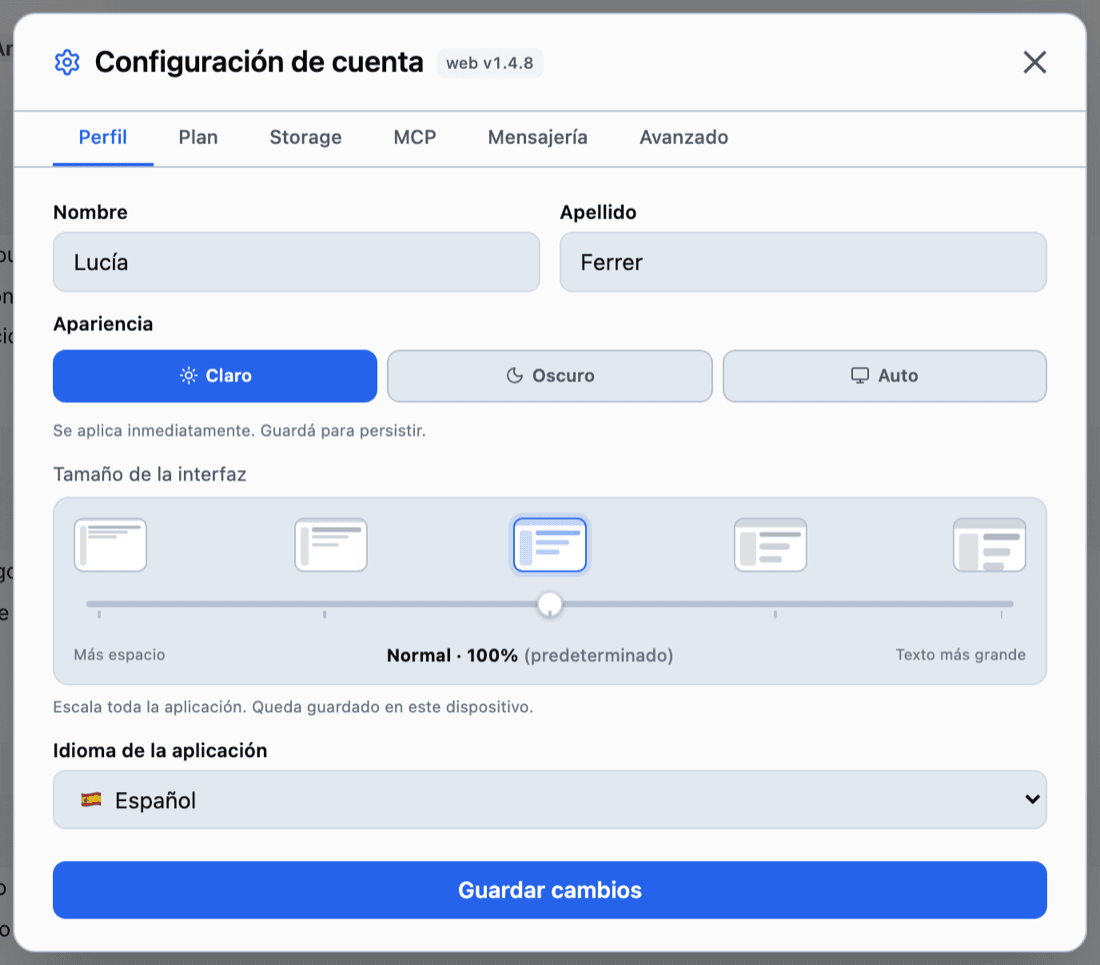
There are two separate settings screens and it is worth not mixing them up: one is yours and follows you across every workspace; the other belongs to one particular workspace and only affects that one. Each lives in its own menu, top right.
- Your name → Account settings: profile, appearance, language, plan, storage, MCP tokens, messaging and security.
- The workspace name → Edit workspace: recaps and templates, calendars, the shape of the digest, integrations and Atlas maintenance.
Both of them, tab by tab, are in Settings.
Integrations
All of them connect from Settings, all are optional and all can be disconnected whenever you want.
Google Calendar
Reads and writes calendar events to show them alongside your tasks and to create or update events when you schedule a task.
Microsoft / Outlook Calendar
The same two-way calendar sync, via Microsoft Graph.
Apple Calendar
iCal subscription: we read your events to show them inside your workspace, and you can subscribe to your Secondbrain tasks from Apple Calendar.
ClickUp
Reads and writes your tasks and lists to keep them in sync with the Service.
Slack
Reads the messages and commands you send the bot, and writes to the channel or direct message you choose to post the digest and its replies. It identifies your Slack user to link it to your account.
Notion
Reads the pages and databases you authorize in order to import them into your document tree. It is one-way and on demand: it never writes anything back to Notion.
MCP
External AI clients (Claude, ChatGPT and others) can query and operate your workspace over the MCP protocol, only with the token you generate.
Shall we try it?
Create your free account and use all of this today.