
Tasks that come out of what you wrote.
Most of your tasks are not something you will create: they will appear. They come out of the daily note, out of your meeting recaps and out of what you dictate to the bot, and they group themselves into deliverables. This page explains how they are detected, the rules they group by, and what control you keep at every step.
Where tasks come from
There are four origins, and all of them leave a trail: every task knows which note, which meeting or which conversation it came from, and that link is never lost.
From the daily note
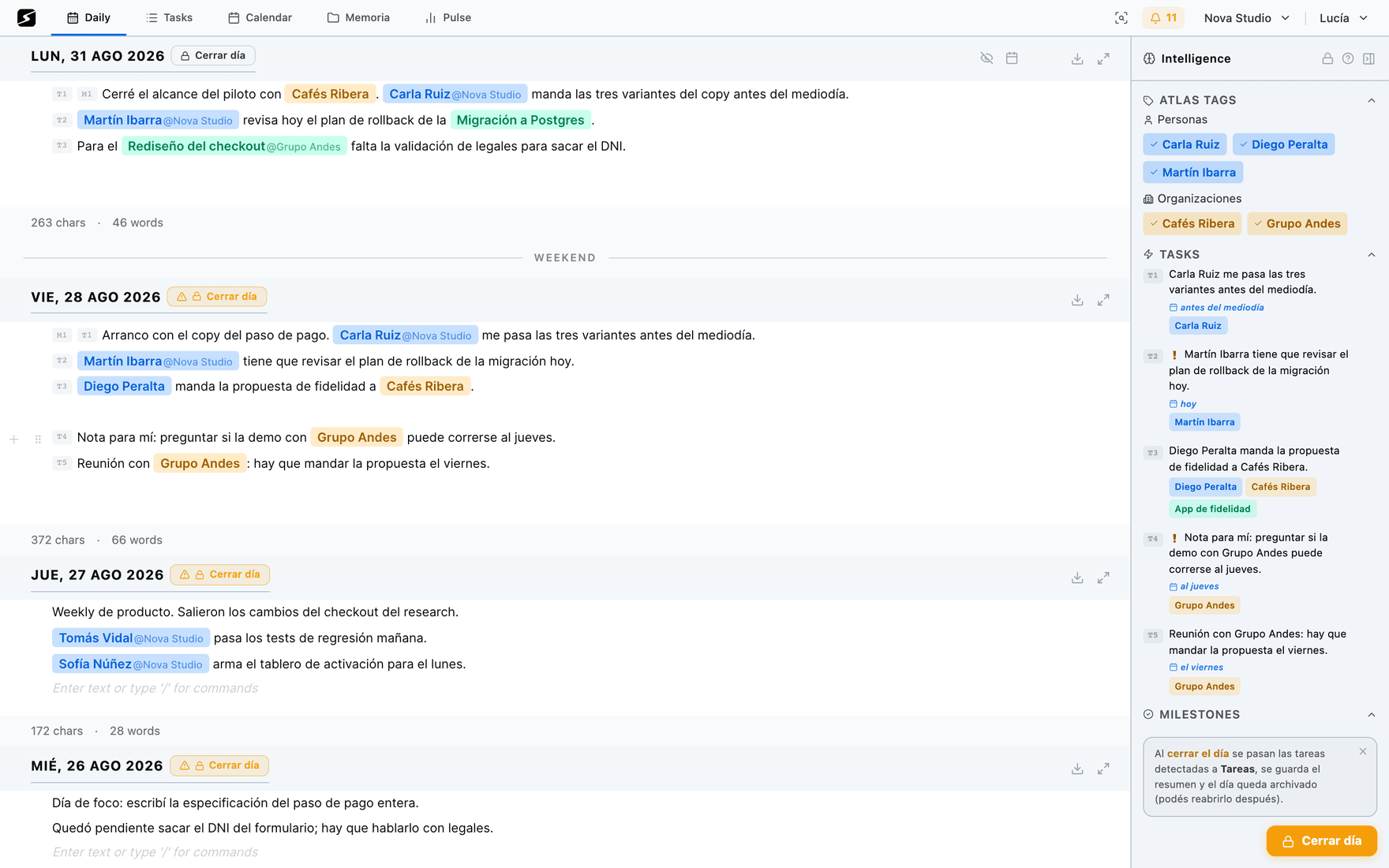
As you write, detection flags the stretches that sound like a commitment: "we agreed to send Acme the proposal on Friday". When you close the day, that flag becomes a task with its date and its people. See The daily note.
From a recap
When a recording ends, the action items are extracted from the summary and stay linked to the meeting, to the person who committed and to the organization discussed.
From chat
Over WhatsApp or Telegram, "task send Acme the proposal Friday" creates the task with the due date already parsed from the text. And everything else comes through that same chat: whatever is not a command lands in your daily note, and "recordame…" creates a reminder with a time. Without opening the app.
By hand, when you need to
You can always create a task yourself, with title, notes, date, owner and whichever Atlas entities you want to attach.
How detection works
While you write the daily note, the AI does two different things at once, and they are worth keeping apart.
- It detects knowledge entities — people, organizations and projects. Every mention links to its Atlas entry, and if the entity did not exist, creating it is proposed.
- It flags task segments — the stretches of text that look like a commitment. The flag lives on top of your text without changing it: what you wrote is never rewritten.
The flag is reversible. The crossed-out eye dismisses the segment: it stops appearing in the note and closing the day no longer materializes it. What you captured stays intact — what was surplus was the task, not the line. The same dismissal is available from chat, as a button on the bot's reply.
Why detection creates nothing on its own
Creating tasks while you write looks faster, but it breaks the writing: you start composing carefully so you don't generate junk, and that is when you stop capturing. With detection separated from creation you can write fast and messy, which is the only way to keep capturing on a bad day.
Closing the day: when everything becomes real
Closing the day is the gesture that turns proposals into objects. On close: the note locks, every segment you did not dismiss is created as a task, new entities are registered in the Atlas, and everything lands in the planner with its date. You press it when the day ends, and automatic close —on by default, switched off in Settings— takes care of the days that were left open anyway.
The day can be reopened. The lock says the day is processed; it does not shut you out: if you remember something at eleven at night, you reopen, write and close again.
It can also close by itself: turn it on in the workspace settings and past days left open close once midnight passes.
Reminders: the task that also pings you
A task is due on a day. A reminder happens at an hour, and at that hour it reaches you whether the app is open or not. Underneath it is one more task with a time on it, so it lives on the same board as the rest — with the clock beside it, because without the hour in sight it reads like any other task, which is exactly what it is not.
You ask for one wherever you are, and all three ways end up in the same place:
In the daily note
With the `/` → Reminder menu, which writes the shape already built —`⏰ 15:30 — llamar al contador`— or in Spanish, in the middle of whatever you were writing. See The daily note.
Over WhatsApp or Telegram
"recordame mañana a las 15:30 llamar al contador". It understands clock times and also en un minuto or dentro de 3 días, and it replies telling you when it will ring and which way it will reach you.
From your phone
The same note and the same chat, in the mobile app. With the app installed the alert arrives as a system notification, the path that costs nothing and does not depend on your plan.
With no time there is no reminder: that is a task with a date. And the time is yours: if you travel, the alert rings at the local time of wherever you are.
Where you see them afterwards
On the task board, among all the others, with its `⏰ 15:30` next to the date; on the calendar, placed on the day and hour of the alert; on your phone, on those same two screens of the mobile app; and from chat, with `hoy` or `pendientes`, without opening anything.
The note line is the source of truth: editing it changes both the task and the alert, and deleting it cancels the alert. The reminder itself works on every plan; having the alert arrive over chat is Hobby and up — on the free plan it goes out by email and to the app's notification bell.
How to ask for one over chat, which shapes it understands and which way it reaches you, in detail: WhatsApp and Telegram and Mobile app.
Deliverables · Hobby: how loose tasks are grouped
When tasks get detected on their own there are many of them, and none is worth much alone. "Ask for the logo", "review the copy", "send Ana the link" are not three things: they are one presentation. A deliverable is that handful of tasks that together produce a result someone is waiting for.
Grouping runs in three steps, cheapest to most expensive, and each one only does what it is good at:
- 1EmbeddingsThe semantic vector of every open task that does not have one yet is computed. It is what lets tasks be compared by meaning rather than by words.
- 2Clustering, no model involvedGreedy agglomerative clustering by cosine similarity: each task attaches to the group it resembles most, if it clears the threshold. Sharing knowledge tags — same project, same organization — pushes that resemblance up. No generative AI takes part here: it is geometry, which is why it is reproducible.
- 3AI names and prunesOnly at the end does the model step in, and only for two things: deciding whether the group holds up as a deliverable and giving it a name that means something. It does not decide the grouping — the previous step already did.
The rules that make the result believable:
- A deliverable has two tasks or more. A one-task deliverable is just the task.
- It never touches a task that already has a deliverable. Regrouping does not overwrite what you arranged by hand.
- Before inventing a new deliverable, it tries to fit the task into an existing one. Without that rule, every run would create duplicates.
- You can create, rename, dissolve and move deliverables by hand whenever you want. Automatic grouping is a starting point, not a verdict.
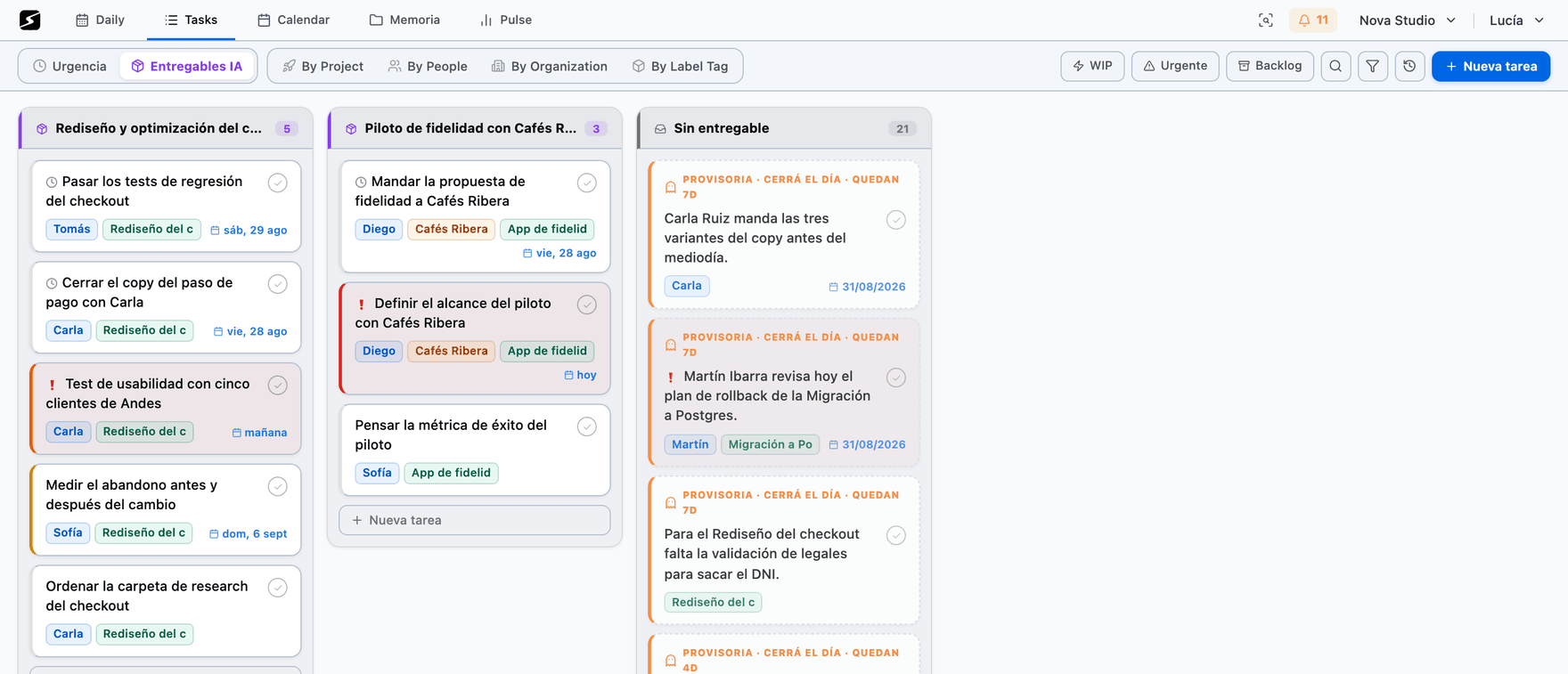
Views: the same work, four ways
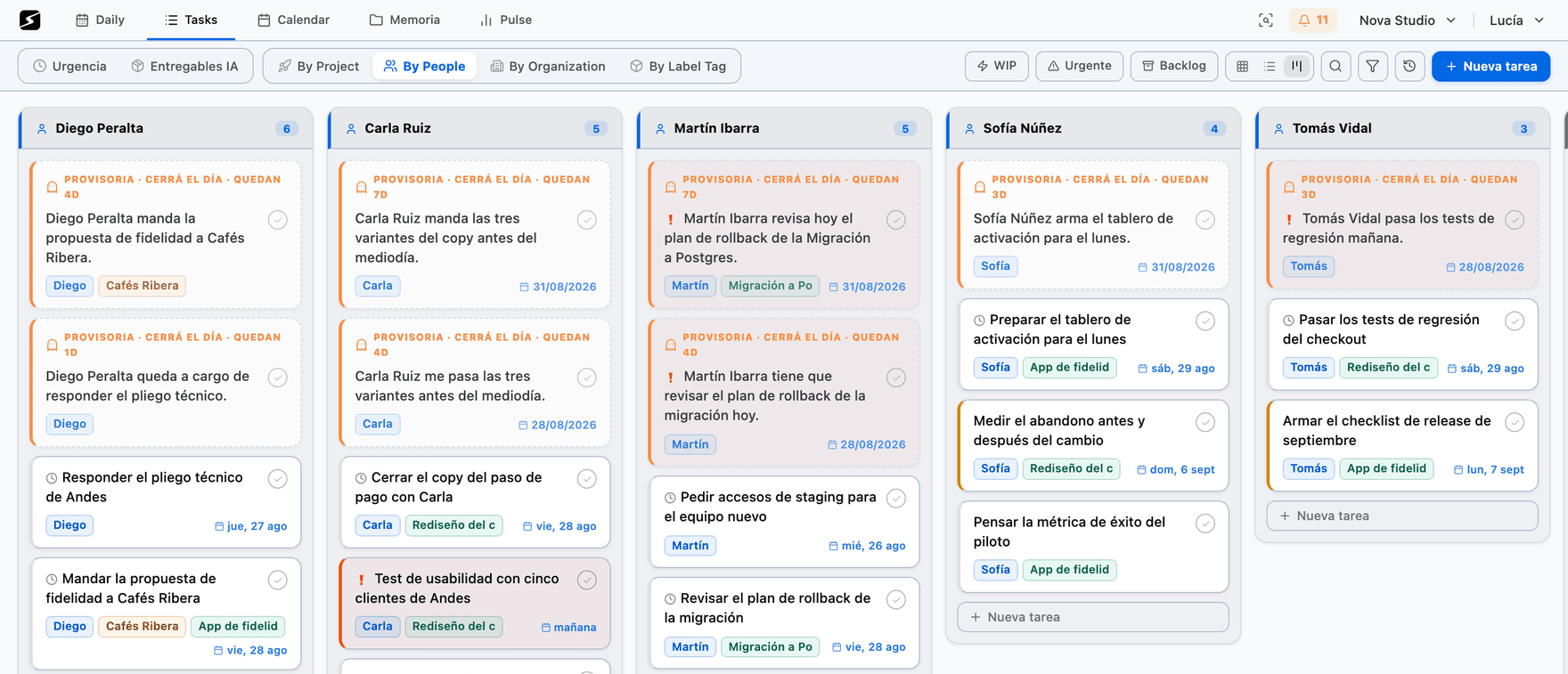
The same task list regroups itself around whatever question you need to answer right now.
By person
What is each person waiting on from me, and what am I waiting on from them? This is the one-on-one view.
By project
Everything that pushes a project forward, no matter which day it came from or who executes it.
By organization
The whole relationship with a client on one screen: their tasks, their people, their projects.
By urgency
Overdue, today, this week, undated. Worked out in your local time, on the device you are looking from.
On top of that, any task can be sent to backlog (it stops competing for your week) or snoozed to a date (it comes back when it should). Both exist for the same reason: getting out of the way what you are not deciding today, without deleting it.
Log, archive and rollback
Every move is recorded. The working log is the timeline of what you completed, with date and origin, and it is what feeds your weekly reports.
Completing a task archives it, it does not destroy it: it stays searchable and stays linked to its project and its people. And if you got it wrong, rollback returns it to its previous state in one click.
When the list has filled up with tasks that got done and nobody ticked, the phone's cleanup goes through them one at a time, in the order that makes sense: it is in the mobile app.
When two tasks say the same thing in different words, similarity search catches them by vector before they duplicate in your list.
Integrations
ClickUp
Reads and writes your tasks and lists to keep them in sync with the Service.
MCP
External AI clients (Claude, ChatGPT and others) can query and operate your workspace over the MCP protocol, only with the token you generate.
ClickUp sync runs both ways and respects the origin: a task created in secondbrain shows up in ClickUp, and one closed in ClickUp closes here. To see them next to your events, see Calendar and planning.
Shall we try it?
Create your free account and use all of this today.