
Settings: where each thing is changed.
There are two settings screens and they are worth keeping apart: one is yours and follows you across every space; the other belongs to the workspace and applies only inside that space. This page walks both of them tab by tab, and makes clear what is stored in the cloud and what stays on the device you are using.
Three levels, three places
Before hunting for an option, it helps to know which level it belongs to. Almost every "it did not save" question turns out to be a per-device preference.
This device
Interface size and local caches. They do not travel: you can keep the app small on the big monitor and large on the laptop.
Your account
Your name, appearance, language, plan, storage, tokens and messaging channels. They follow you across every workspace.
The workspace
The name, recap types, connected calendars, the shape of the digest and the integrations. They apply to everything you do inside that space.
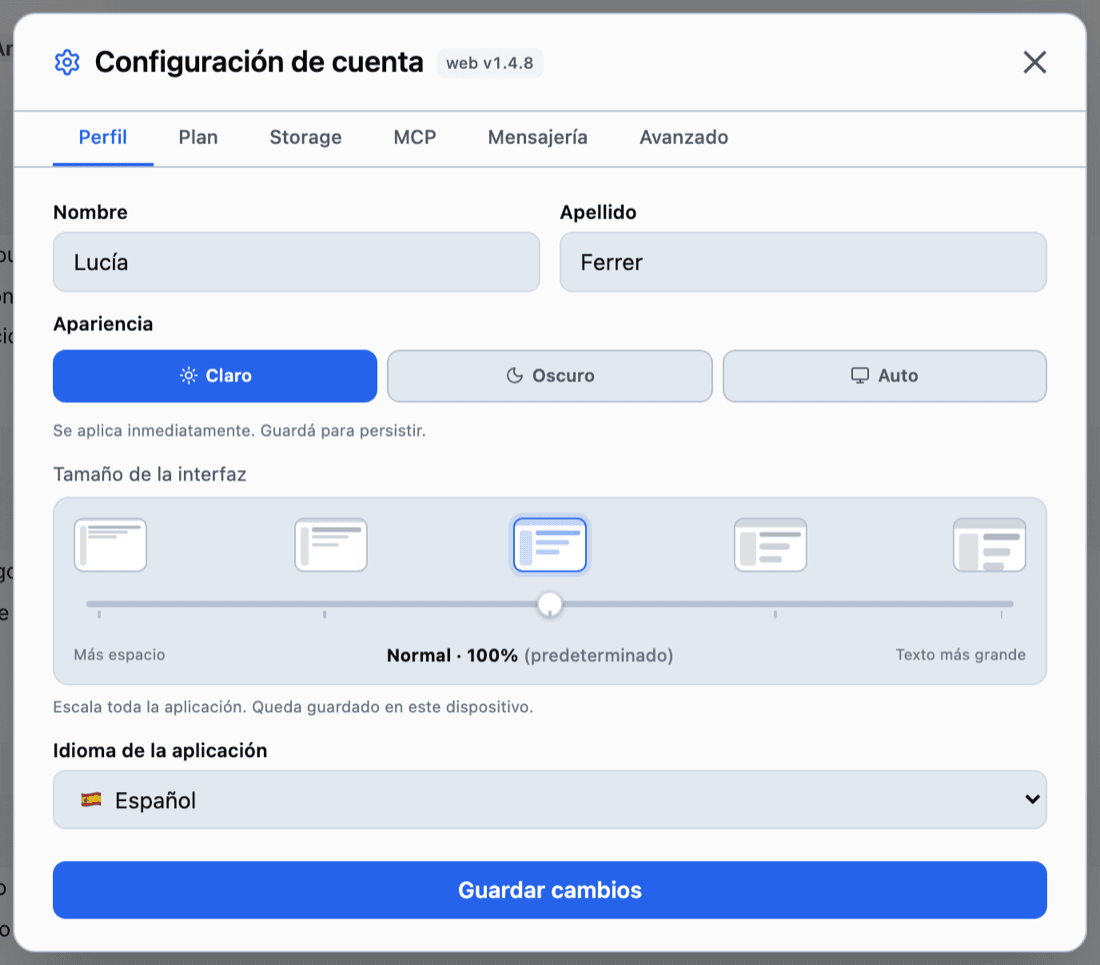
Both screens open from the top right: your name → Account settings and the workspace name → Edit workspace.
Your account, tab by tab
| Tab | What is inside |
|---|---|
| Profile | First and last name, appearance (Light, Dark or Auto, with three dark variants), interface size — a slider that scales the whole app and is stored on that device —, language (Spanish or English) and the Pomodoro durations — focus and break — which are not only the menu bar's: they live in your account and are the same ones running on your phone. |
| Plan | Which plan you are on and what it costs, the feature-by-feature detail, and the button to change it. |
| Storage | How much you use against your plan limit, broken down by file type — images, documents, video, audio — and with the file count. It is the total across all your workspaces, not the one you are looking at. |
| MCP | Long-lived access tokens for connecting external agents, and the apps that signed in with Sign in with secondbrain. See MCP and AI clients. |
| Messaging | Link WhatsApp and Telegram with the six-digit code the bot replies with, and the list of commands. See WhatsApp and Telegram. |
| Security | Two-step verification, exporting all your data as a ZIP and deleting the account. See Account security. |
| Advanced | Clear the browser cache and empty the screenshot cache from screen comprehension — it clears itself after 7 days or past 500 MB. If you are an administrator, this is also where Analytics opens, in its own window. |
The workspace, tab by tab
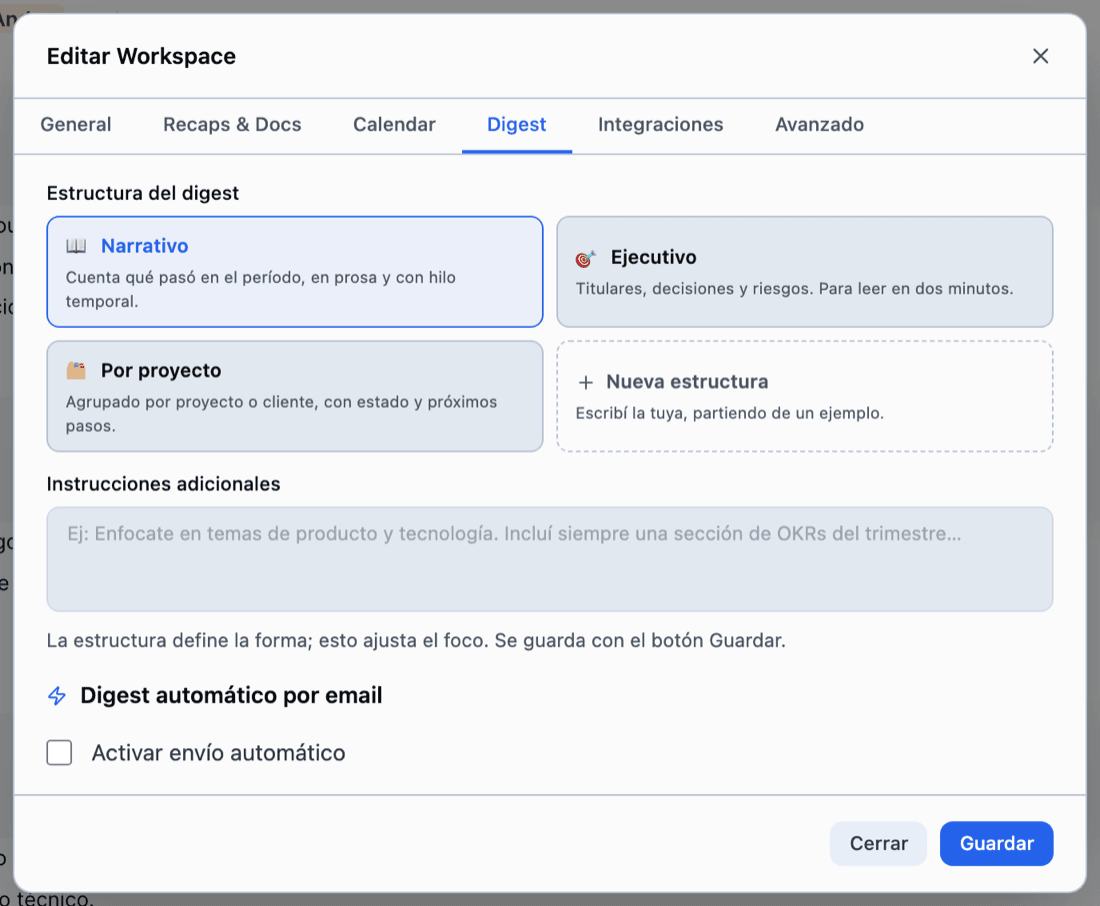
These options apply to everything you do inside that workspace, and they do not travel to the others.
| Tab | What is inside |
|---|---|
| General | The name, what you use it for (Work, Personal or Study — which decides the summary styles offered when generating a recap) and close the day automatically, which is optional and ships off: turn it on and, once midnight passes, days left open close by themselves. It is not a background job: it is checked when you open the app. This is also where the workspace is deleted. |
| Recaps & Docs | The recap types — the setup assistant proposes them based on what you do, and you edit, add and delete them here —, your summary templates — the structure each recap is written in — and your document generation templates, each with its own preloaded instruction. |
| Calendar | Connect Google or Microsoft to read and write events, or add a calendar by iCal URL, which comes in read-only. See Calendar and planning. |
| Digest | The digest structure — Narrative, Executive, By project, or up to two of your own —, the extra instructions that shift its focus, and automatic delivery by email with its hour and its type per day. See The digest. |
| Integrations | ClickUp, with two-way task sync; Slack, to get the digest and use the commands from your workspace; and Notion, to import your pages into the document tree. |
| Advanced | Clear the cache, purge unused labels — the Atlas ones left in no note — and auto-merge duplicates, which merges labels with the same name or matching another one's alias, keeping the one with more occurrences. |
Your workspaces
A workspace is an independent working space: its own content, its own Atlas, its own digest. You create them and switch between them from the rail at the top right.
- How many you get is set by your plan: one on the free plan, two on Hobby and ten on Pro.
- A new workspace can be set up with an assistant that proposes the initial configuration based on how you work.
- What you share outside the workspace you choose document by document. See Memory and documents.
One personal, one for work
Having two workspaces is how personal life and work stop sharing an Atlas and a digest. You switch between them from the rail on the edge, and nothing mixes — except your storage, which is counted together.
Integrations
All of them are connected from one of the two screens, all optional, and disconnectable whenever you want.
Google Calendar
Reads and writes calendar events to show them alongside your tasks and to create or update events when you schedule a task.
Microsoft / Outlook Calendar
The same two-way calendar sync, via Microsoft Graph.
Apple Calendar
iCal subscription: we read your events to show them inside your workspace, and you can subscribe to your Secondbrain tasks from Apple Calendar.
ClickUp
Reads and writes your tasks and lists to keep them in sync with the Service.
Slack
Reads the messages and commands you send the bot, and writes to the channel or direct message you choose to post the digest and its replies. It identifies your Slack user to link it to your account.
Notion
Reads the pages and databases you authorize in order to import them into your document tree. It is one-way and on demand: it never writes anything back to Notion.
MCP
External AI clients (Claude, ChatGPT and others) can query and operate your workspace over the MCP protocol, only with the token you generate.
Shall we try it?
Create your free account and use all of this today.