
Your workspace in your pocket, with what only a phone can do.
The iOS and Android app is not the web made smaller. It is built around the three things that only happen on a phone: capturing in the moment, recording wherever you are, and listening while you do something else. Everything that comes in here shows up instantly on the web and on desktop.
The five tabs
Navigation is a floating glass bar with five destinations. What does not fit in five, fits inside the fifth.
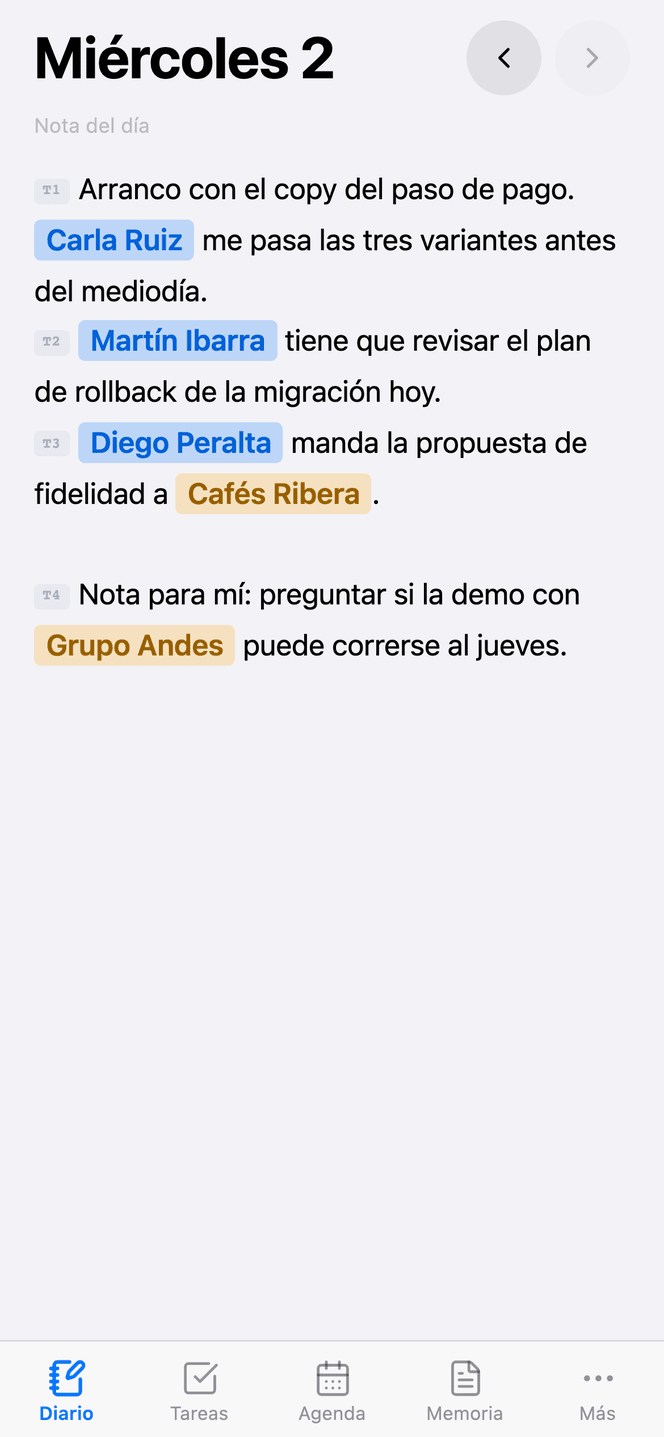
Daily
Your daily note, with the same editor and the same detection as on the computer. The screen you will use most.
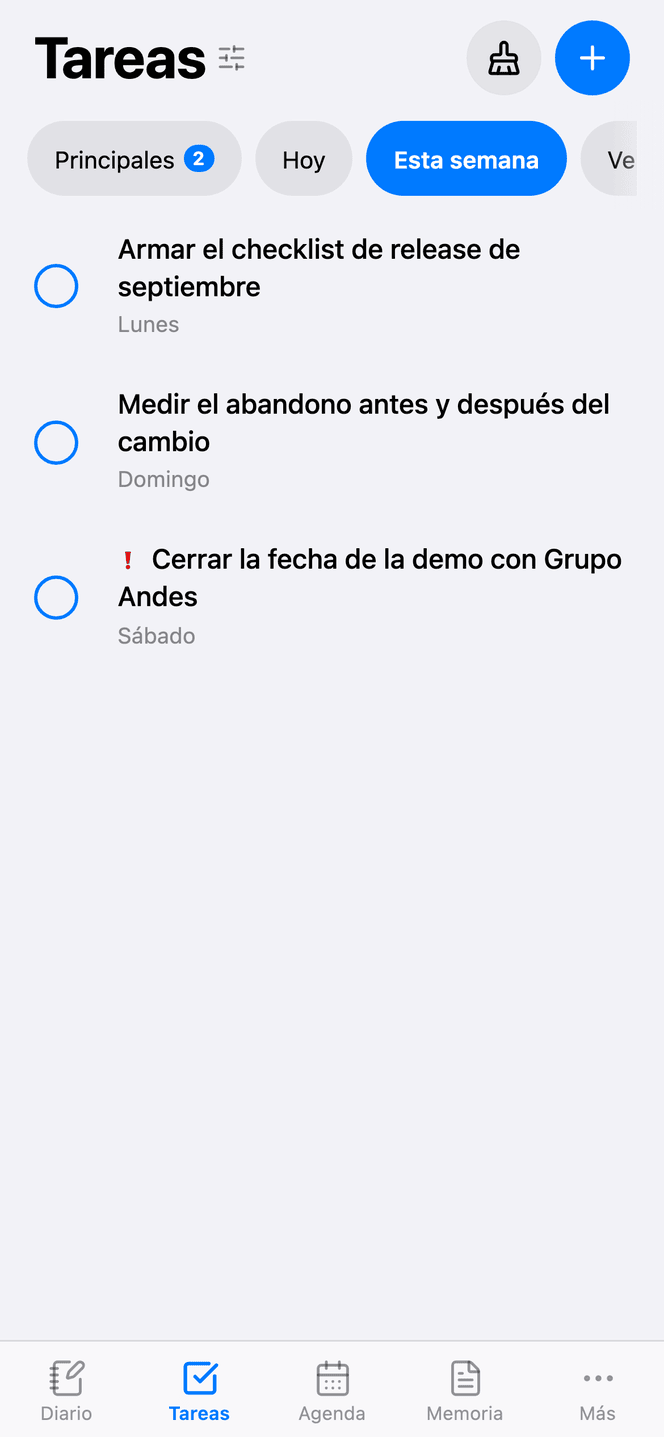
Tasks
What is due today and what is coming. Close with a tap, operate by swiping, empty it one card at a time. It has its own section below.
Calendar
The whole calendar: your events, the ones from your connected calendars, what is due and what you recorded. It has its own section below.
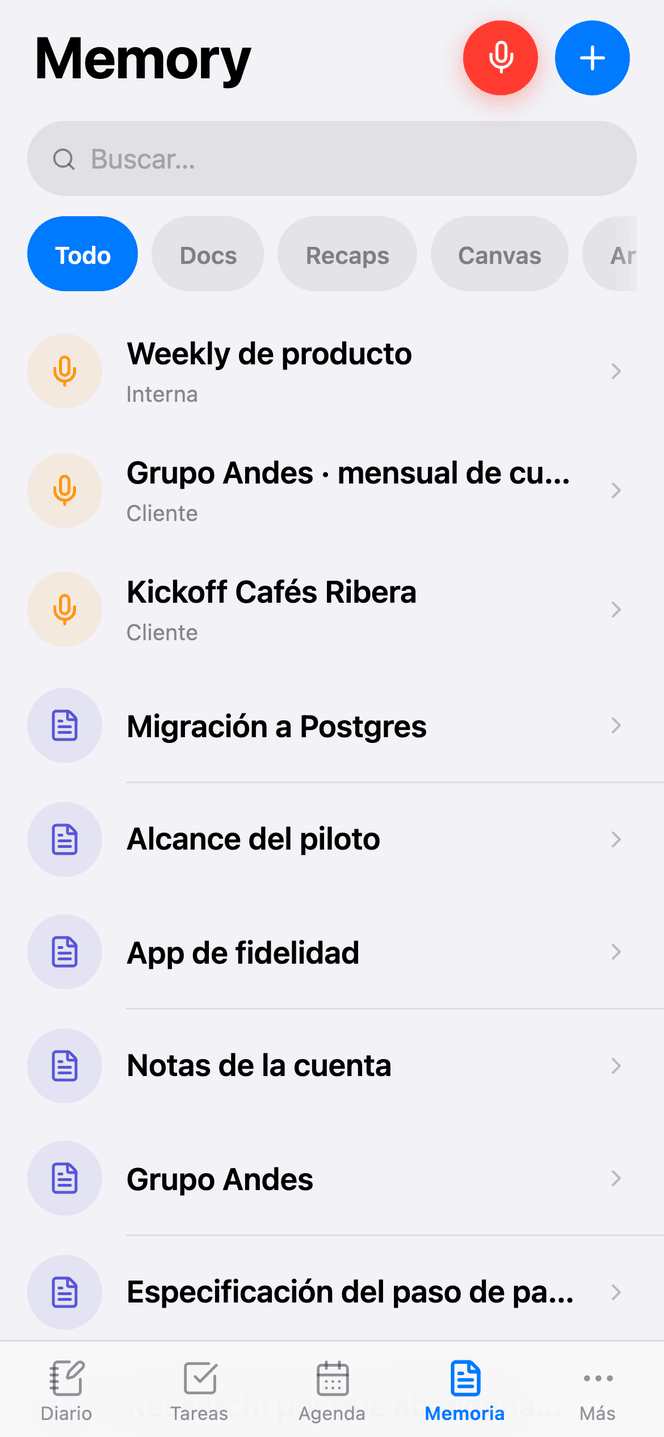
Memory
Everything written and recorded, with search and filters: documents, recaps, canvases and files.
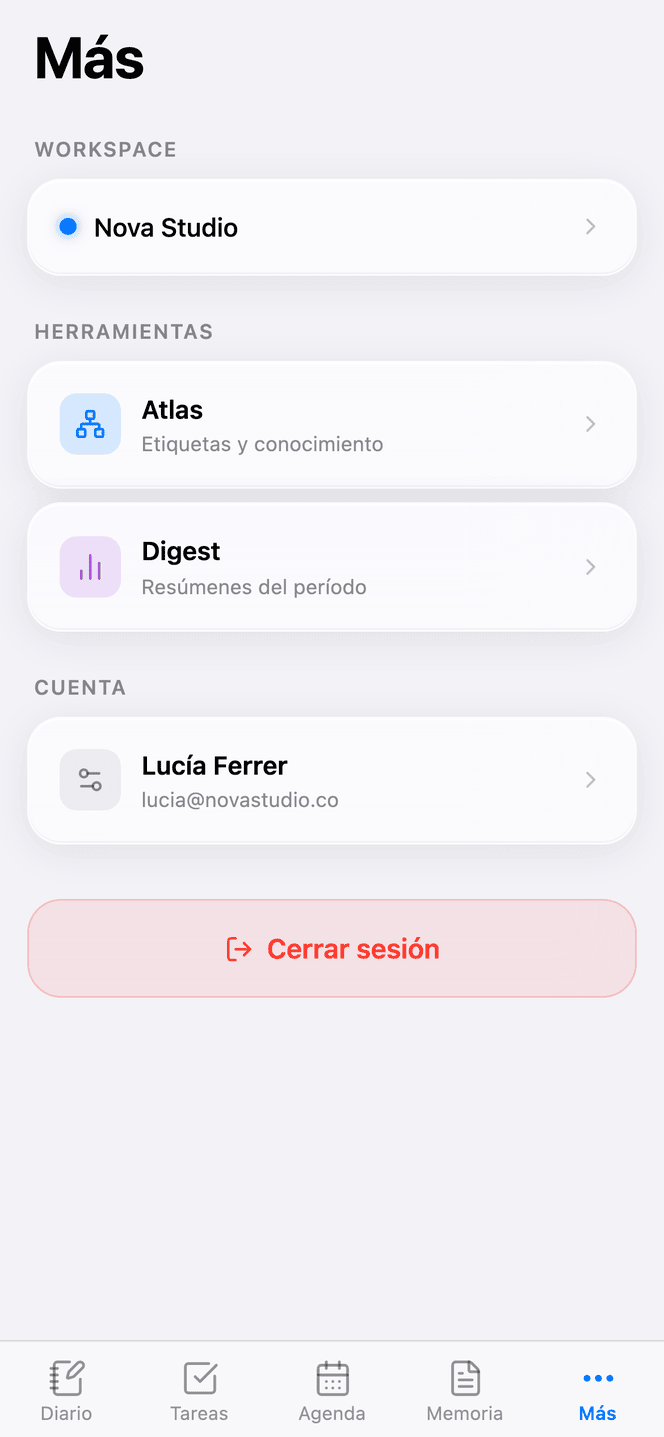
More
The workspace you are in, the Atlas, the Digest and your account settings.
The fourth tab is the calendar, not the digest
The Digest is read now and then; the calendar is looked at every day and it is what you reach for the phone to check. So the digest moved to More → Tools, next to the Atlas, and the bar gave its slot to the calendar.
Tasks: closing them with your thumb
The same tasks as on the computer, with the same rules. What changes is how you operate them: on a phone there is no context menu and there are no columns, there is a finger.
The group, in one row
Main, Today, This week, Overdue and All. You pick one: a task is due today or due next week, not both.
The refinements, behind the title
In progress, Urgent and Reminders narrow whichever group you are looking at, and they live in a menu that opens by tapping "Tasks". A blue dot tells you when one is on.
Swiping a row
To the right you get "+1 day" and "In progress"; to the left, cancel. Press and hold opens the full menu with edit, date and urgent.
Provisional ones too
Tasks that are still a line in a note swipe the same way: to the right they take you to the note they came from, and the menu offers closing that day or discarding them.
Cleanup: one task at a time, one single question
When eighty tasks are open, the ones already done that nobody ticked sit mixed in with the ones that matter and dirty everything else: the counters, the "Today" filter, the planner. Going through them in the list does not work, because every row asks a different question —do I open it? edit it? push it a day?— and by row ten nobody is still going.
The broom button, top right, opens cleanup: one card at a time and one question, is this already done? Right takes it off the list, left leaves it as it is and brings the next one. Up top you see how many you have gone through and a bar for how much is left.
The order is not the list order. The ones that most smell like "already done and nobody ticked it" come first, and the card tells you why it is looking at you: it was due five weeks ago, it has been in progress for ten days, its reminder already rang, it has been open for months with no date. Those are signals of abandonment, not of importance: a task due tomorrow is urgent and has no business here.
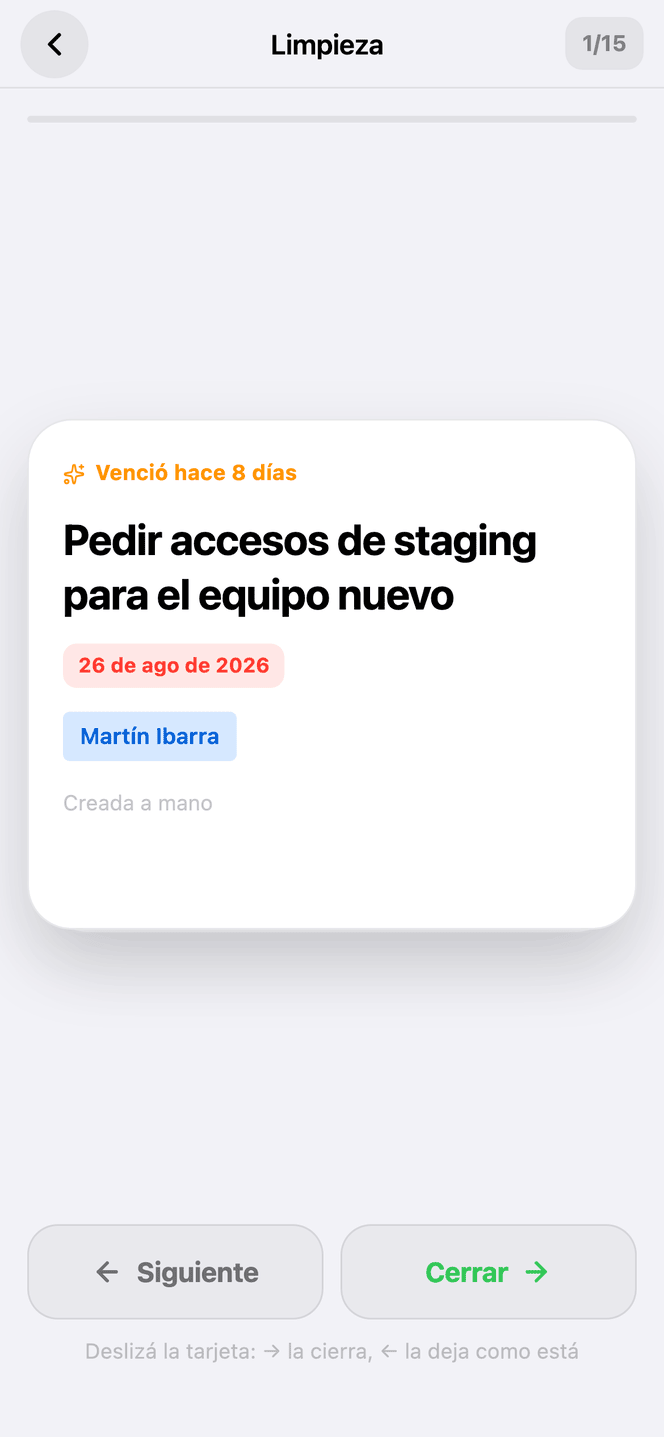
Swiping right does not close it on its own: a sheet asks how it closes, Done or Cancelled. They are two different things —it got done, or it is not going to happen— and the list counts them differently. It is also the confirmation, and it is always asked: closing a task in one swipe, with nothing to tap, is the kind of mistake you later have to go dig out of the bin.
And if your thumb went too far anyway, Undo stays at the bottom for a few seconds, with the title of the one you just closed.
What closes here, closes everywhere
Cleanup goes through the same path as the list, so whatever you close in there is already ticked when you come back, and the calendar, the Digest and the desktop app find out when you leave. Provisional tasks stay out of the deck: they do not exist in the database yet, they get confirmed when you close the day.
The calendar, built for a thumb
The same information you see on the computer —your events, the ones from your connected calendars, the tasks that come due, the recaps you recorded and the days you closed— with the same permission rules. What changes is how you operate it.
Four views
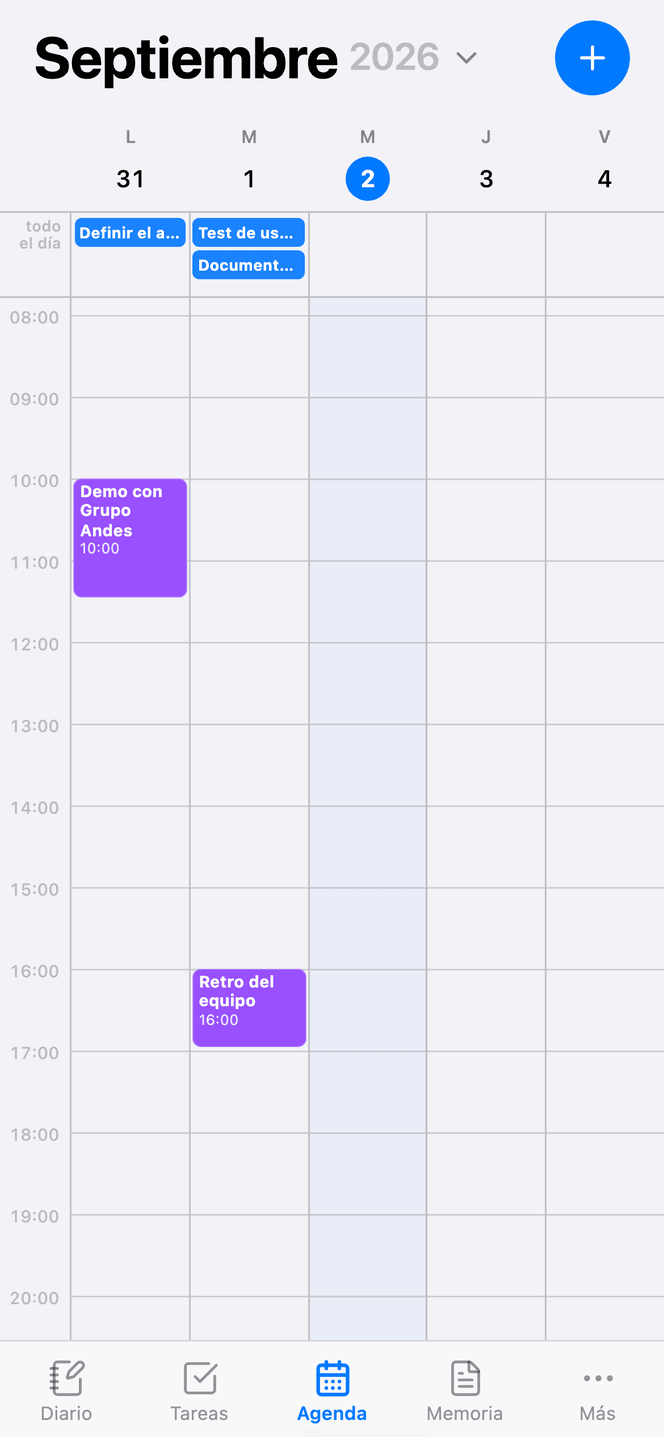
Day, 3 days, week and month. The week runs Monday to Friday unless you ask for weekends.
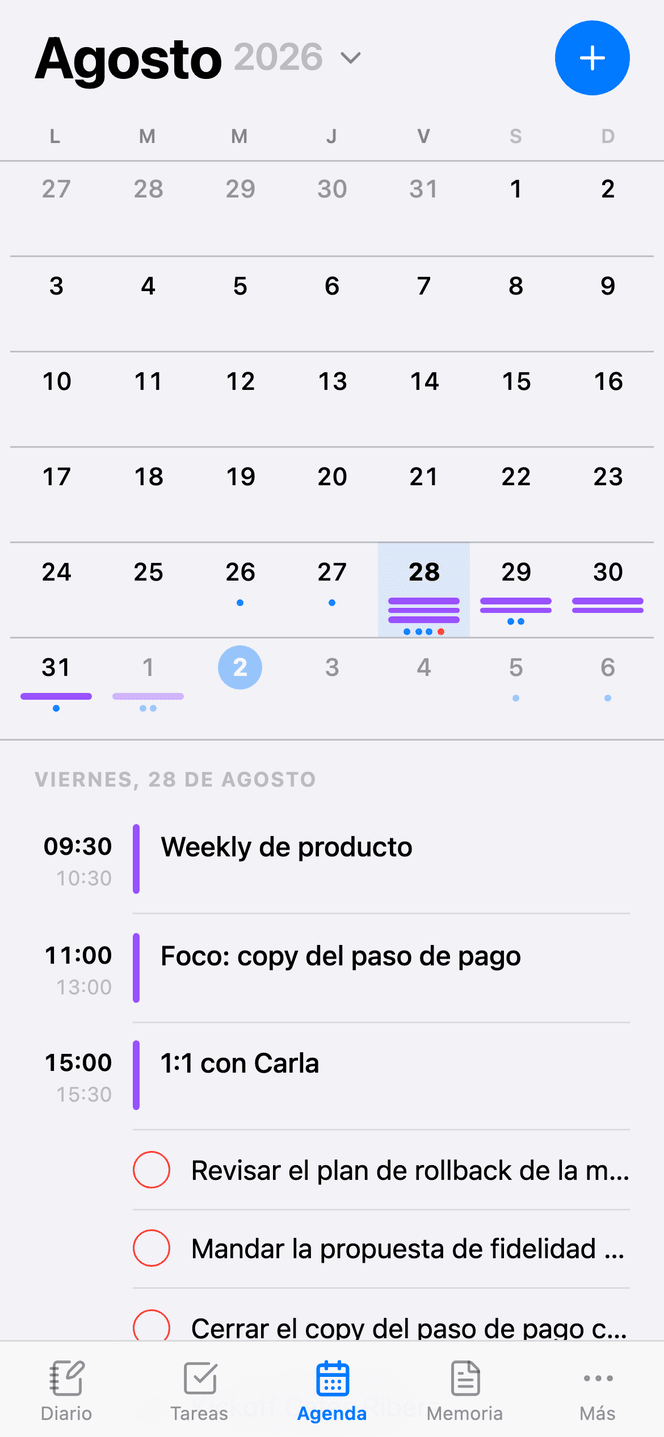
Month, the way phones do it
The grid carries no text —at 50 px it cannot be read— and below it goes the list of the day you tapped. A second tap on the same day opens it in full.
You swipe between them
Months and weeks move with your finger, not with little arrows. And in day and 3-day views, where the columns are wide, you press and hold an event to move it to another hour or another day.
Marking a slot
Press on an empty spot in the grid and drag to pick the slot; let go and the event is created right there.
Creating, editing and deleting live in a full-screen form with the native date and time pickers. It has everything the web modal has: destination calendar, all-day, repetition, notes, Atlas tags and the tasks done during the event — which you can close from there.
Behind the month title sits the screen menu: go to a date or to today, the view, whether weekends show, which layers you see —events, tasks, recaps— and your connected calendars, with the sync button.
What is still desktop-only
The weekly planner —the one that spreads your tasks over the curve of your day— is a big-screen tool and is not on the phone. Google, Outlook and Apple calendars are also connected from the web app, in Settings → Calendars; once connected they show and sync from here.
How the calendar works and why the planner proposes what it proposes is in Calendar and planning.
Capturing in the moment
Mobile capture competes with forgetting, not with the keyboard. So there are three paths and all of them are one tap:
- You type into the daily note, with the full editor and the keyboard you already use.
- You dictate — system dictation writes into the note, and what you dictated is processed exactly like what you typed.
- You share from any app — the iOS or Android Share button sends text, links or images to secondbrain. You choose whether it goes to today's note, to a new document or to Files.
Shared content is not lost even with the app closed
A share can arrive with the app closed and no session started. Instead of processing it on the fly — where it would be lost in exactly the most common case — it is held until you open the app and choose where it goes.
Recording, and controlling from a distance
Your phone is the best recorder you carry, and it is also the best remote control for a recording running somewhere else.
Record from the phone
An in-person meeting, a call, an idea while walking. Transcript and summary come out the same as on the computer.
Follow on the computer
You record on the phone and the transcript appears live on the big screen.
Remote control
If you left a recording running on your computer, your phone tells you and lets you pause it, stop it or see how long it has been going — without getting up.
New recap from mobile
Pick the meeting type and start, with the summary template you already defined.
Listening instead of reading · Hobby
Any document or recap can be read aloud. It is the feature that turns a commute or a walk into review time.
- Adjustable speed, from 0.75× to 2×.
- Controls on the lock screen and in control centre, like any player.
- Keeps playing with the screen off and the app in the background.
- Resumes where you left off.
What only exists because it is native
iOS widget
Your tasks for the day on the home screen. It stays current with whatever changes from the phone, the web or the desktop.
Face ID and Touch ID
Biometric lock on launch and on return from background. If you are recording or have an unsaved draft, the content stays intact underneath the lock.
Deep links
A link to a document, a task or a recap opens straight in the app, whether it came from an email, a chat or the widget.
Notifications
Reminders ring on your phone even with everything closed. They have their own section below.
The Pomodoro, in the notification tray
The round button on Daily, bottom right, is the twin of the Mac menu bar: there the Pomodoro hangs off the Secondbrain icon, here off the logomark, which is where your thumb reaches. And as on the desktop it is not only for the Pomodoro — it is the short door to recording, adding a task or taking a photo without leaving the note.
With the clock running the button stops being the logo: it becomes the ring with the minutes left, blue during focus and orange during the break, and tapping it goes straight to the controls instead of opening the menu. With the clock running, what you came for is to pause it.
The controls are in that same sheet: Start, Pause and Resume, Skip to move to the next phase without waiting, and Stop to end the cycle. And right there, Change the durations.
- 1It tells you with the phone in your pocketThe alert for the end of focus, and the one for the end of the break, arrive with the app closed and the screen locked. You do not have to leave it open or remember to check.
- 2And you can see it without opening anythingOn Android a persistent notification keeps the countdown, like a ride in progress. On iPhone it shows up in the Dynamic Island and on the lock screen.
- 3You come back and it is where it should beYou can close the app, take a call or leave the phone for an hour: when you come back, the clock shows the time that is actually left, not the time left when you walked away.
Durations are set once and apply everywhere: they live in your account, so what you set on the Mac shows up on the phone. Changing them while the clock is running does not touch the current phase — that would be moving the goal mid-way — but it does change the next one.
Why the Pomodoro is part of the method →Notifications: being told with the app closed
The first time you come in, the app asks permission to notify you. That is what makes a reminder ring at the time you asked for even with nothing open — and it is also the path that costs nothing, so the alert arrives on the free plan too.
Reminders
When something you asked to be reminded of comes due, wherever you wrote it: over chat, in the daily note or from the web.
Recaps ready
When a forwarded audio finishes being summarized.
New tasks
When someone assigns you a task in a shared workspace.
Shared with you
When someone shares a document or a recap, or links you to a person.
In Account → Alerts you turn them on and off by type. By type and not by channel on purpose: where it reaches you sorts itself out —notification if you have the app, chat if not, email last— and that is not a decision worth making you take.
If you said no to the permission
The system permission is asked once. If you denied it, no switch inside the app brings it back: you turn it on again from your phone's Settings, in the secondbrain entry.
The switches in Account → Alerts are a different thing: they pick what you want to receive, not whether the permission is granted.
Linking WhatsApp or Telegram from the phone
In Account → Chats you link the bot without going through the computer, which is where it makes sense to do it: the chat is on this device.
- 1Pick the channelWhatsApp or Telegram. The enrolment opens right there.
- 2Open the bot with one tapThe button jumps to the chat app with the conversation open. Send it anything and it replies with a code.
- 3Come back and paste the codeAnd it is linked. If you have more than one workspace, you pick which one it writes to right there.
From then on, whatever you send the bot lands in your daily note, and the reminders you ask it for ring on this phone. See WhatsApp and Telegram.
Also installable as a PWA
Beyond the native apps, the workspace installs from the browser on any phone: it opens full screen, with no address bar, and sits there as one more icon.
It is the fast way to try it without going through an app store.
Integrations
Apple Calendar
iCal subscription: we read your events to show them inside your workspace, and you can subscribe to your Secondbrain tasks from Apple Calendar.
Subscribing to the iCal feed of your tasks from your phone's calendar puts what you planned into the calendar app you already look at, with nothing to install. See Calendar.
Shall we try it?
Create your free account and use all of this today.